How Do I Access My Dedicated Server?
A dedicated server is a physical machine leased entirely to one customer, so unlike shared or virtual hosting, there is no host-provided control panel session running by default you connect to it directly over the network using the same protocols you would use on any standalone computer. The method you use depends on the server's operating system and, in a worst-case scenario, whether the operating system is even reachable.
This guide covers the three ways to access a dedicated server Remote Desktop Protocol (RDP) for Windows, Secure Shell (SSH) for Linux, and out-of-band management through IPMI/KVM along with the credentials you need, step-by-step connection instructions, and how to recover access when the normal method fails.
Note: "Access" covers two different layers that are easy to confuse:
OS-level access (RDP/SSH, which requires the operating system to be running and networked correctly) and hardware-level access (IPMI/KVM, which works even if the OS has crashed or the network stack is misconfigured). Knowing which layer you're troubleshooting saves significant time when something goes wrong.
What You Need Before You Connect (Prerequisites)
Before attempting to connect to a new or existing dedicated server, confirm you have:
The server's public IP address or hostname, provided by your hosting provider in the welcome or provisioning email.
A valid username and password (for Windows, typically an Administrator account; for Linux, typically root or a sudo-enabled user).
The correct port, if the provider uses a non-default RDP or SSH port for security reasons.
An SSH private key file, if your Linux server was provisioned with key-based authentication instead of a password.
Network access from your current location some corporate or public networks block outbound RDP (3389) or SSH (22) traffic.
An RDP client (built into Windows) or an SSH client (built into Windows 10/11, macOS, and Linux) installed on the computer you are connecting from.
Note: Save your access credentials in a password manager as soon as you receive them. Dedicated server welcome emails are a common target for account-takeover attempts, and losing that one email with no other record of the password is one of the most frequent reasons customers end up needing a password reset or emergency console access later.
How Do I Access a Windows Dedicated Server? (RDP)
Direct answer: Open the built-in Remote Desktop Connection app, enter the server's IP address (and port, if non-standard), then sign in with the Administrator username and password your provider gave you.
Connecting from a Windows Computer
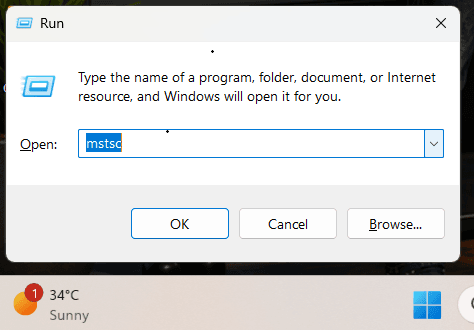
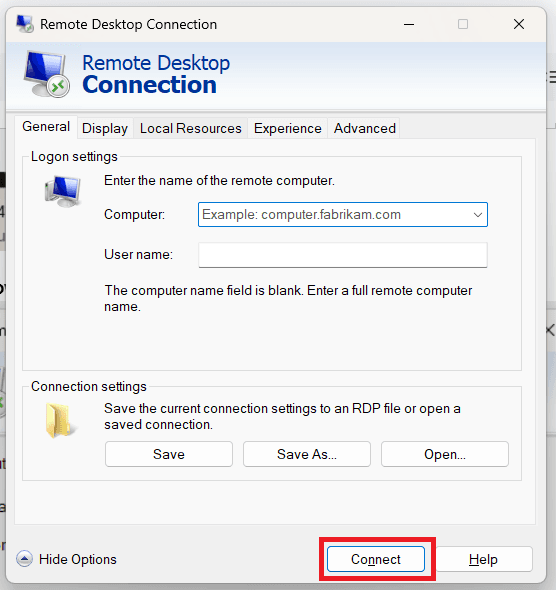
Press Win + R, type mstsc, and press Enter to open Remote Desktop Connection.
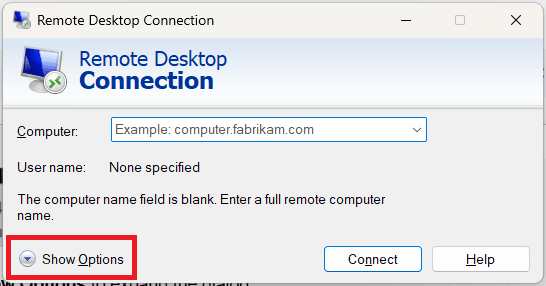
Click Show Options to expand the dialog.
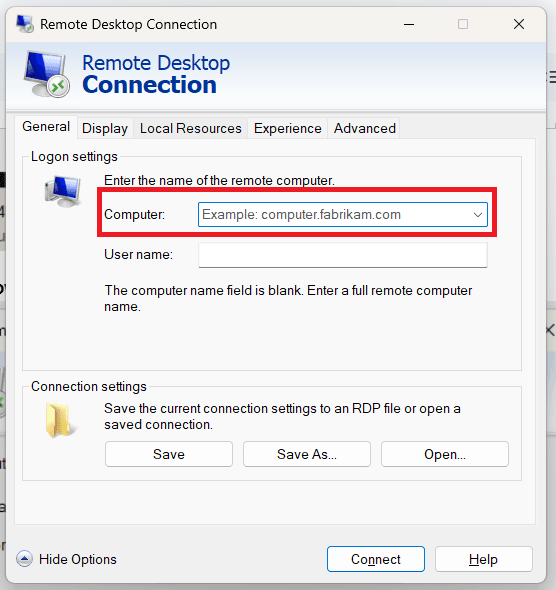
In the Computer field, enter the server's IP address. If your provider assigned a non-default RDP port, use the format IP:PORT (for example, 203.0.113.10:3390).
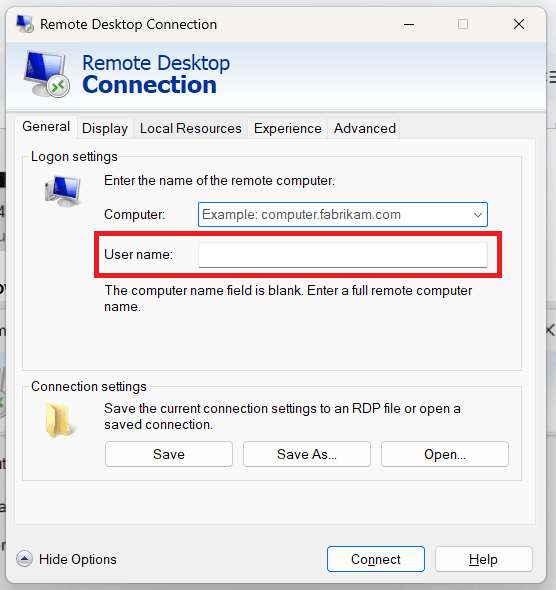
Enter the Administrator username (or the custom admin account your provider created).
Click Connect, then enter the password when prompted.
Accept the certificate warning this appears because the server uses a self-signed certificate by default, not because the connection is insecure.
The Windows desktop of your dedicated server should now load in the Remote Desktop window.
Connecting from macOS or Linux
Windows dedicated servers can also be reached from non-Windows machines:
macOS: Install the free Microsoft Remote Desktop app from the Mac App Store, add a new PC with the server's IP address, and connect with your credentials.
Linux: Use an RDP client such as Remmina or FreeRDP, for example: xfreerdp /v:203.0.113.10 /u:Administrator
Note: If you were given a specific admin username rather than "Administrator," use it exactly many providers rename or disable the built-in Administrator account for security. Also check whether your provider changed the default RDP port from 3389; this is a common hardening step, and forgetting the custom port is one of the most common reasons a first RDP attempt fails.
How Do I Access a Linux Dedicated Server? (SSH)
Direct answer: Open a terminal and run ssh username@server_ip, then authenticate with your password or SSH private key.
Connecting with a Password
Open Terminal (macOS/Linux) or PowerShell/Command Prompt (Windows 10 version 1809 or later, which includes OpenSSH by default).
Run the basic connection command:
ssh [email protected]If your provider uses a non-default SSH port, add the -p flag:
ssh -p 2222 [email protected]On your first connection, you'll see a host key fingerprint prompt. Type yes to trust the host and continue this fingerprint is then stored in your local ~/.ssh/known_hosts file.
Enter your password when prompted. Nothing will appear on screen as you type; this is normal terminal behavior.
You're now at a remote shell prompt on the server.
Connecting with an SSH Key
If your server was set up for key-based authentication (more secure than a password), point the SSH client at your private key file:
ssh -i /path/to/private_key [email protected]
On Windows, use PuTTY with the equivalent .ppk key file, or use the same -i syntax in PowerShell if you're using OpenSSH.
Using PuTTY on Windows
Download and open PuTTY.
Set Connection type to SSH.
Enter the server IP in Host Name and the port (default 22) in Port.
Click Open, accept the host key prompt, and log in with your username and password.
Note: If your provider issued an SSH key instead of a password, keep the private key file's permissions restricted on Linux/macOS, run chmod 600 /path/to/private_key. OpenSSH will refuse to use a key file that other users on your local machine can read, and the resulting error message ("UNPROTECTED PRIVATE KEY FILE") confuses a lot of first-time users because it looks like a server-side problem when it's actually local.
How Do I Access My Server If RDP or SSH Isn't Working? (IPMI/KVM)
Direct answer: Use your provider's out-of-band management interface commonly called IPMI, iDRAC (Dell), or iLO (HP) to open a remote KVM console that behaves like a monitor and keyboard physically attached to the server, independent of the server's own network configuration.
Every dedicated server includes a baseboard management controller (BMC) that runs independently of the main operating system. Because it operates outside the OS, it stays reachable even when the OS has crashed, a firewall rule locks out RDP/SSH, or the network configuration inside the server itself is broken.
Typical Steps to Launch an IPMI/KVM Session
Log in to your hosting provider's client area or control panel.
Locate your dedicated server and open its management or "Remote Console" section.
Request or copy the IPMI credentials if they aren't already visible (some providers regenerate these on demand for security).
Launch the HTML5 KVM viewer (or the Java-based JViewer on older hardware) directly from the browser no extra software installation is required for the HTML5 option.
The console opens a live view of the server's screen. From here you can log in with your OS credentials exactly as if you were sitting in front of the machine.
If the screen shows a locked session, use the console's own Send Keys → Ctrl+Alt+Del menu option rather than pressing the key combination on your own keyboard, since your keyboard shortcut may be intercepted by your local OS instead of being sent to the remote session.
What You Can Do From the Console That You Can't Do Remotely
View BIOS/UEFI screens and boot messages, useful when the server won't finish booting.
Mount a local or remote ISO image to reinstall the operating system.
Perform a hardware-level power cycle, reset, or forced shutdown.
Diagnose why the network stack itself isn't responding (misconfigured IP, disabled network adapter, firewall lockout).
Note: Test your IPMI/KVM access as soon as your server is provisioned, before you actually need it in an emergency. It's far easier to fix an access problem while the server is otherwise healthy than to discover during an outage that your console credentials were never delivered or the feature wasn't enabled on your plan.
Troubleshooting Access Problems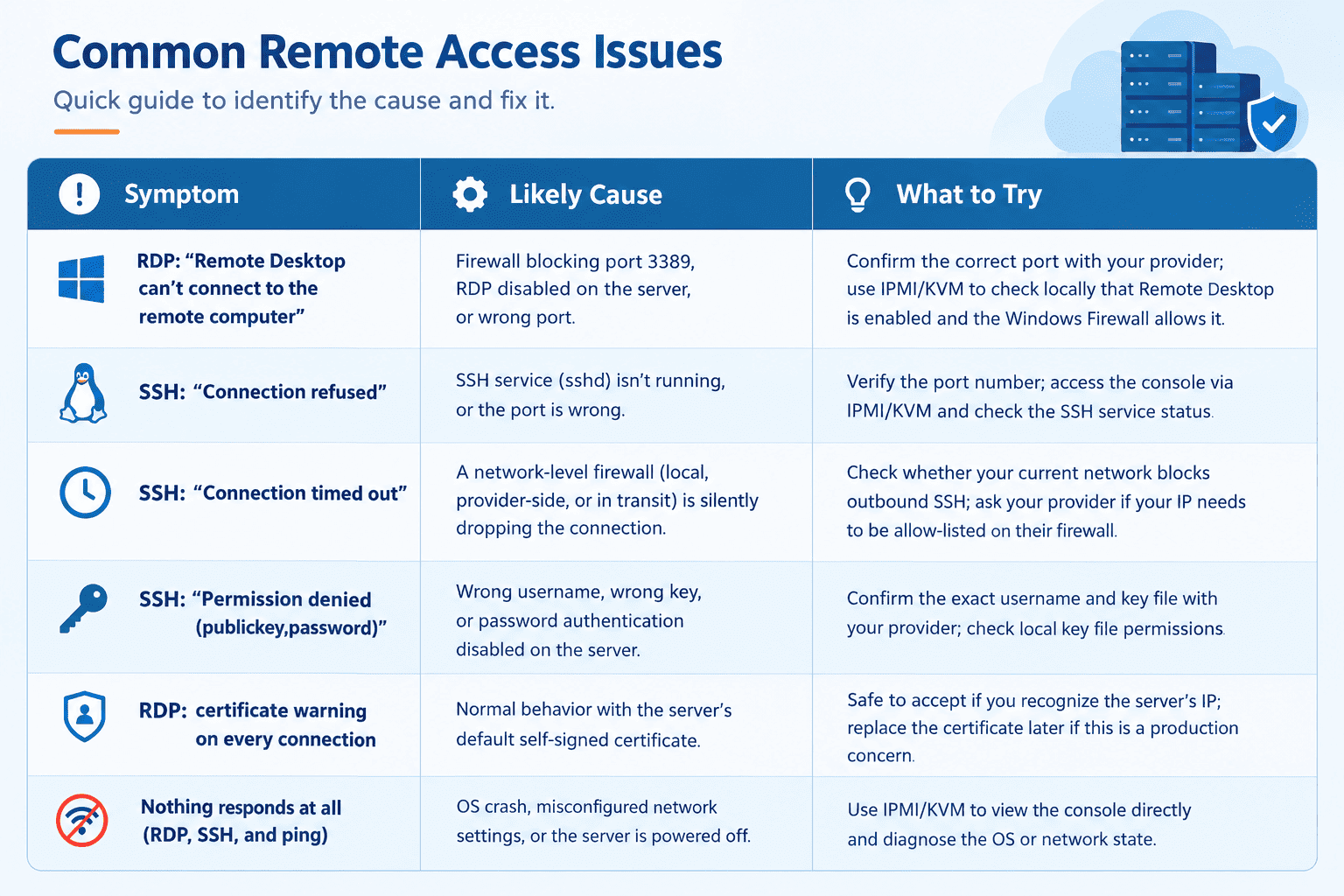
Note: When a connection "times out" rather than being actively refused, that distinction matters diagnostically a timeout usually means a firewall is silently dropping your packets somewhere in the path, while an immediate "refused" response means a firewall or the destination service actively rejected the connection. Mentioning which one you're seeing will speed up any support ticket significantly.Common Mistakes to Avoid
Losing the welcome email: This is often the only record of your initial credentials and IP address. Store it in a password manager immediately.
Assuming the default port: Many providers change RDP or SSH to a non-standard port as a basic security measure; always confirm before troubleshooting further.
Typing your keyboard shortcut instead of using the console's menu: Inside a KVM/IPMI viewer, key combinations like Ctrl+Alt+Del must be sent through the viewer's on-screen menu, not typed directly, or your local OS intercepts them.
Never testing emergency access: Waiting until an outage to try IPMI/KVM for the first time is a common and avoidable cause of extended downtime.
Leaving default credentials unchanged: Using the initial Administrator or root password indefinitely is one of the most common ways dedicated servers get compromised by automated brute-force scans.
Best Practices for Secure Server Access
Change the default Administrator/root password immediately after first login, and use a long, unique password or passphrase.
Switch Linux servers to SSH key authentication and disable password-based SSH login once the key is confirmed working.
Restrict RDP and SSH access to specific IP addresses or a VPN wherever your workflow allows it, using a properly configured firewall.
Add multi-factor authentication for administrative logins where supported, using a privileged access management and MFA solution.
Change any non-default RDP/SSH port your provider assigned only after confirming it with them, and document the change somewhere your team can find it.
Periodically test your out-of-band IPMI/KVM access so it's ready if OS-level access ever fails.
If you manage multiple servers or lack in-house time for hardening and patching, a managed dedicated server plan shifts routine security and access maintenance to your provider's team.
Note: Access security and server security are the same problem viewed from two angles a perfectly patched server is still vulnerable if RDP or SSH is left open to the entire internet with a weak password. If you're unsure how exposed your current setup is, a vulnerability assessment and penetration test (VAPT) will identify open management ports and weak authentication before an attacker does.
Frequently Asked Questions
What's the difference between RDP, SSH, and IPMI/KVM?
RDP and SSH are software-level, operating-system-dependent protocols RDP for graphical access to Windows, SSH for command-line access to Linux. Both require the OS and its network stack to be up and responding. IPMI/KVM is hardware-level, out-of-band access through the server's management controller, which works independently of the OS, making it the fallback when RDP or SSH won't connect.
Why can't I connect to my dedicated server right after I ordered it?
New dedicated servers typically need time for provisioning, OS installation, and network configuration to complete; providers usually specify an expected delivery window and send access details once setup finishes. If the window has passed and access still fails, contact your provider's support team.
Can I access my dedicated server from a phone or tablet?
Yes. Microsoft Remote Desktop Mobile (iOS/Android) supports RDP connections, and SSH client apps such as Termius or JuiceSSH support SSH connections from mobile devices, though a full keyboard makes command-line work considerably easier.
Is it safe to accept the RDP certificate warning?
Yes, as long as you recognize the server's IP address and you're connecting for the first time or after a reinstall. The warning appears because the server uses a self-signed certificate by default, not because of an active attack. If the warning appears unexpectedly on a server you connect to regularly, verify the IP address before proceeding.
What do I do if I forgot my dedicated server's password?
Use IPMI/KVM console access to log in locally and reset the password from within the OS (via Control Panel on Windows or passwd on Linux), or contact your hosting provider's support team, who can typically reset it from their management platform.
Why does my SSH connection ask about a "host key" the first time?
This is SSH's way of verifying you're connecting to the genuine server and not an impersonator intercepting the connection. Typing "yes" stores the server's fingerprint locally so future connections can be verified automatically; if the fingerprint ever changes unexpectedly on a server you've connected to before, treat it as a warning sign and verify with your provider before proceeding.